Sections
In Structure you build your organisation's tree: you drag levels such as organisation, region, location, department and team together into a tree.
What is Structure for?
You will find this page in the menu under We → Settings → Structure.
Here you model how your organisation is built, as a tree. You drag levels from the palette onto a node (dropped onto a node it becomes a sub-level), move nodes by dragging, and rename them by clicking the name – or start from a template. To open the page you need access to your organisation's settings.
The screen at a glance
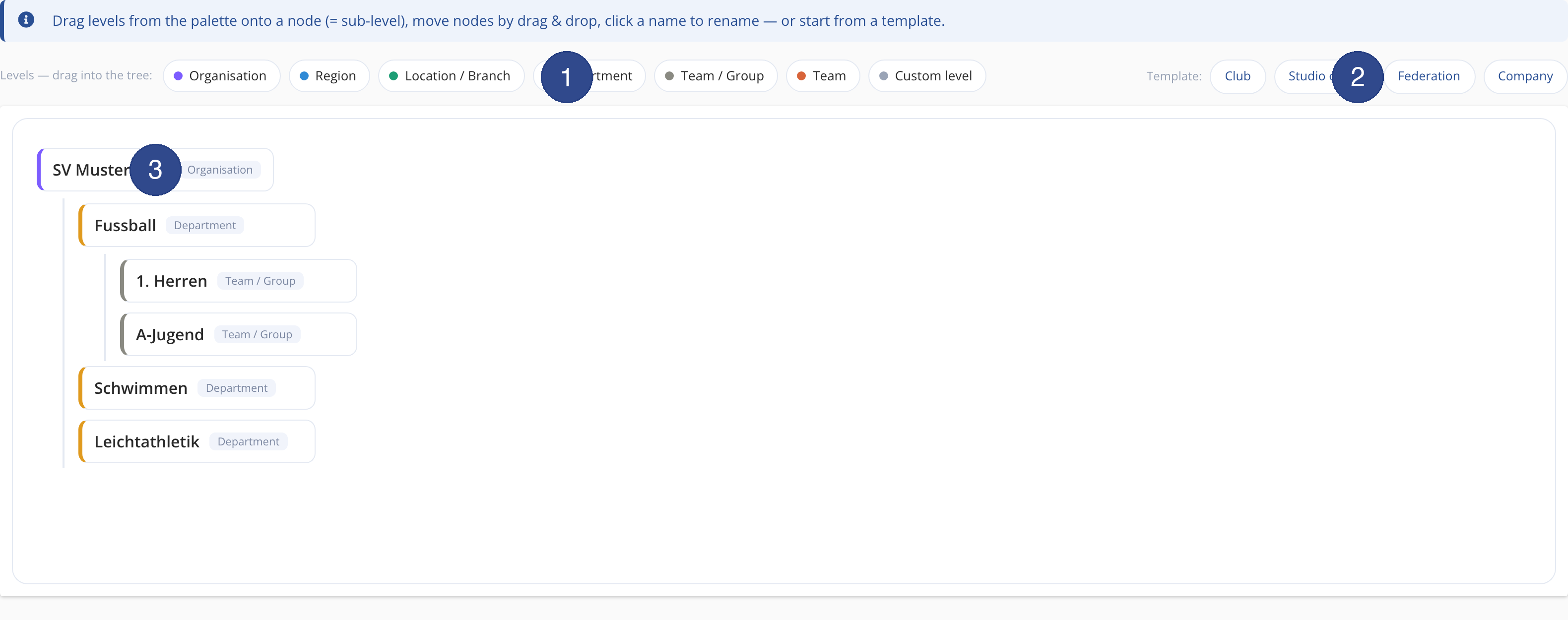
- ① Level palette
- Under Levels — drag into the tree: the building blocks are ready: Organisation, Region, Location / Branch, Department, Team / Group, Team and Custom level. Drag a block into the tree.
- ② Templates
- With Template: you start from a ready-made structure – Club, Studio chain, Federation or Company. A template replaces the current tree (after a confirmation).
- ③ A node in the tree
- Each node shows its name and, to its right, the level (e.g. Organisation or Department). Click the name to rename it; using the icons on the node you add a sub-level (the plus) or delete it (the cross). On an Organisation the gear opens the group settings.
Step by step: build the structure
- Open We → Settings → Structure.
- Drag a level from the palette into the tree. Drop it onto an existing node to create a sub-level.
- Click a node's name and type the name you want.
- Drag nodes to the right place; use the cross to remove a node.
Tip Changes are saved automatically; there is no separate save button. Instead of starting by hand, you can load a fitting structure via Template: and then adjust it.