Trainers & Guides
Manage your school's trainers, guides and instructors, assign them to appointments and groups, and set availability for slot bookings.
Overview
Under Trainers & Guides you manage your team. Trainers are assigned to course appointments and groups and can set their own availability for Slot Bookings.
In the trainer area you manage your school's trainers, guides and instructors. Per person you store contact details, qualifications and licences as well as availabilities, from which the slot bookings and scheduling are derived.
You assign trainers to appointments, courses and groups; in case of absence you can enter a substitute. This makes it clear at all times who is on duty where and when, and participants see the responsible trainer directly at the appointment.
The stored qualifications ensure that only appropriately trained trainers lead certain courses, and the deployment data also forms the basis for settling fees and trainer rates.
When a trainer leaves, you revoke access with a single click without losing historical deployment and settlement data.
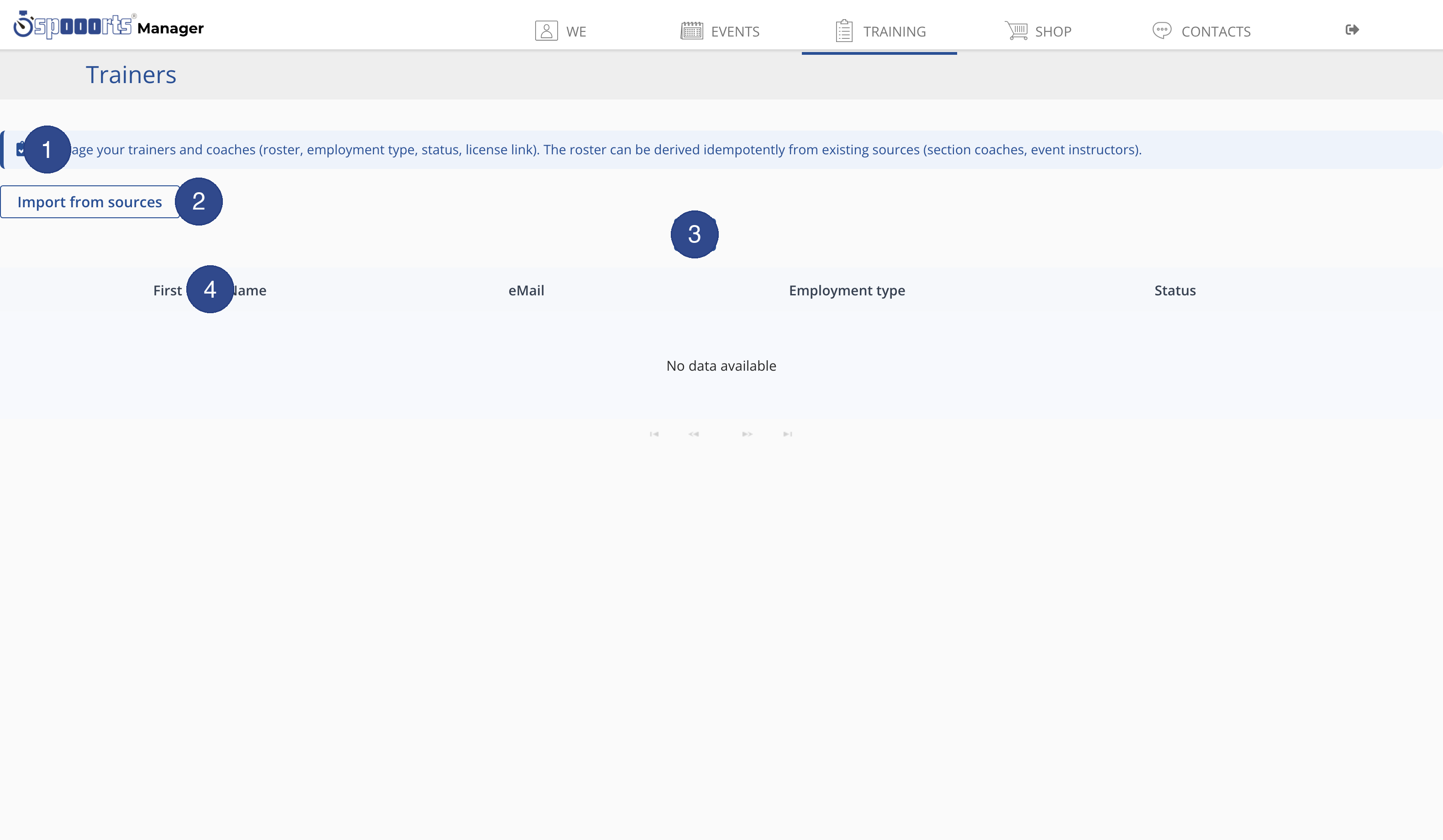
- ① Note
- The note explains that here you manage trainers and coaches (roster, employment type, status, license link) and can derive the roster from existing sources.
- ② Import from sources
- Use this button to import trainers automatically from existing sources (section coaches, event instructors). The operation is idempotent — running it multiple times creates no duplicates.
- ③ Add trainer
- Use the plus button to create a new trainer manually.
- ④ Sortable columns
- The table shows First name Last name, eMail, Employment type and Status.
Instructors / trainers
Menu path: Training → Trainers and Availability. Invite instructors by e-mail and store qualifications, availability and substitutes.
Connecting external calendars
Availability knows weekly times, absences, preferences and external busy times. You link external calendars (iCal, Apple, Google, Outlook) via the calendar settings: spooorts subscribes to the public calendars (.ics) read-only and enters them as busy times, so the trainer schedule produces no double bookings. You switch each feed on or off individually.
Tips
- Set availability per trainer so participants can book matching slots.
- Assign a trainer to every appointment so participants know who leads the course.