Setup assistant
The assistant gets your website ready in four steps: who you are, offer & price, website & app, ready.
Overview
You can restart the setup assistant any time.
On first start the setup assistant guides you through the basic setup in four steps. The four steps appear as a progress bar at the top; the current step is highlighted. Next moves to the following step.
The assistant also opens from the "Get started" buttons on the spooorts marketing sites – sport, type and language are then preset.
The four steps
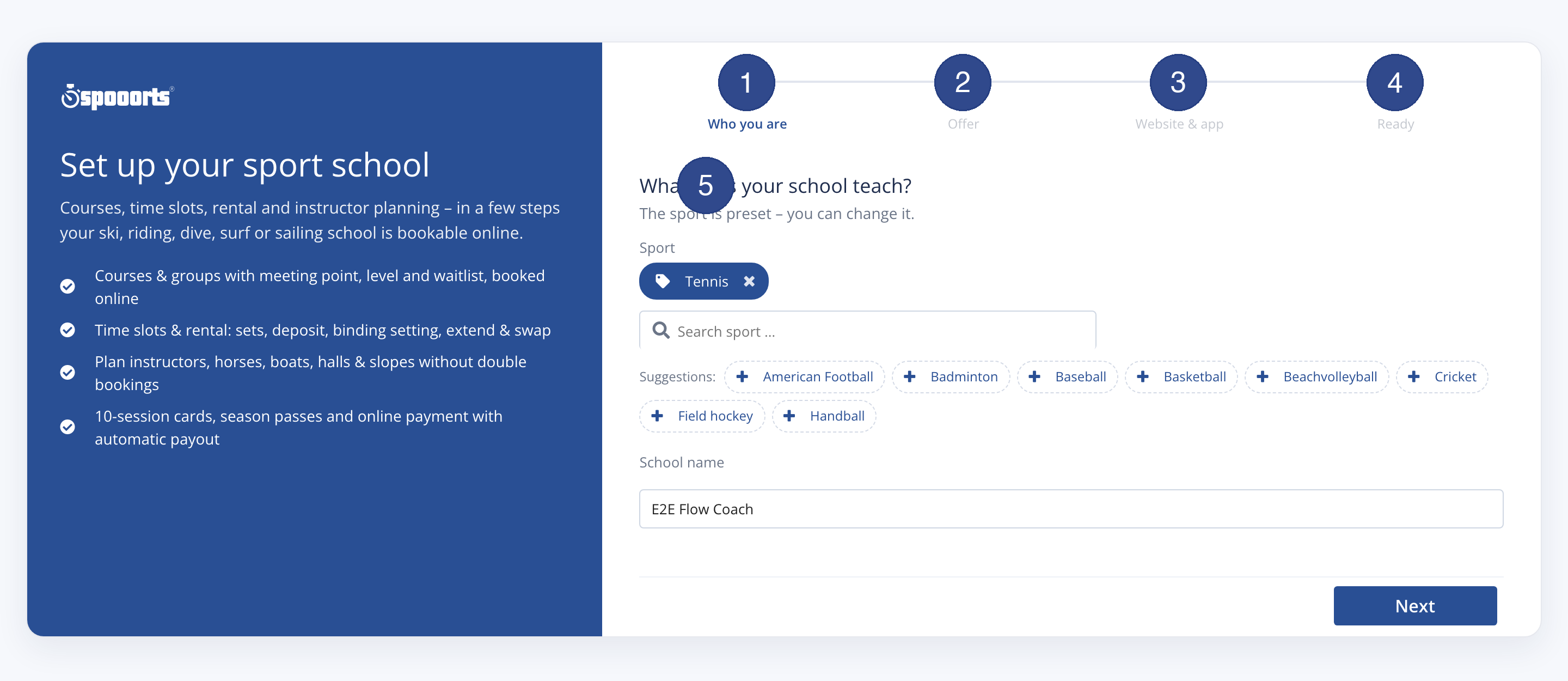
- Who you are / Your event
- Choose the sport and give a name; for events also date and location.
- Offer & price
- The first offer and the prices – fees, courses, places or categories depending on the type.
- Website & app
- Web address (subdomain) and the website package.
- Ready
- A checklist leads you into the relevant screens to finish the setup.
Ready checklist
The Ready step shows this checklist for the sports school:
- Location created
- We → Locations
- Opening hours stored
- Location → Opening hours
- First course with date in the calendar
- Calendar
- Payment method set
- Payment – Payment methods & payout
- Stripe verification completed (payout active)
- Payment – Payment methods & payout
- 10-session card / season pass created
- Passes
- Invite instructors / coaches
- Trainers
- Check resources (courts, sets, boats, horses)
- Equipment board
- Set cancellation terms
- Policies
- Waiver & registration questions (level, weight, minors)
- Registration questions
Depending on the school type extra items appear:
- Racket/ball sports & climbing
- Time-slot rule with price; club tournament or race
- Winter sports
- Rental with stock and day price; binding setting (ISO 11088) for ski sets
- Water sports
- Rental; certification/license requirement; weather cancellation rule
- Equestrian
- Horses with weight limit and max. uses per day
- Martial arts
- Belt grades & exams; club tournament
Holiday camp (kind=camp): the checklist leads with these items:
- First camp with dates in the calendar
- Calendar
- Parental consent as registration question
- Registration questions
- Waiting list & automatic move-up
- Waiting list
- Invite camp staff
- Trainers
Tip
Tipp You can run the assistant again at any time via Next and the progress bar; already saved entries are kept.