Reception
Reception is the check-in board for courses – pick a course session, see participant and attendance figures and check guests in.
What is reception for?
You will find this page in the menu under Training → Reception.
Reception is a kiosk board for check-in on the course day. At the top you pick a course session; below, key figures (participants, present, sales) show the current status, and the Check-in / Attendance and Walk-in / Late entry panels let you check booked guests in or add spontaneous participants. To open the page you need access to the training area.
The screen at a glance
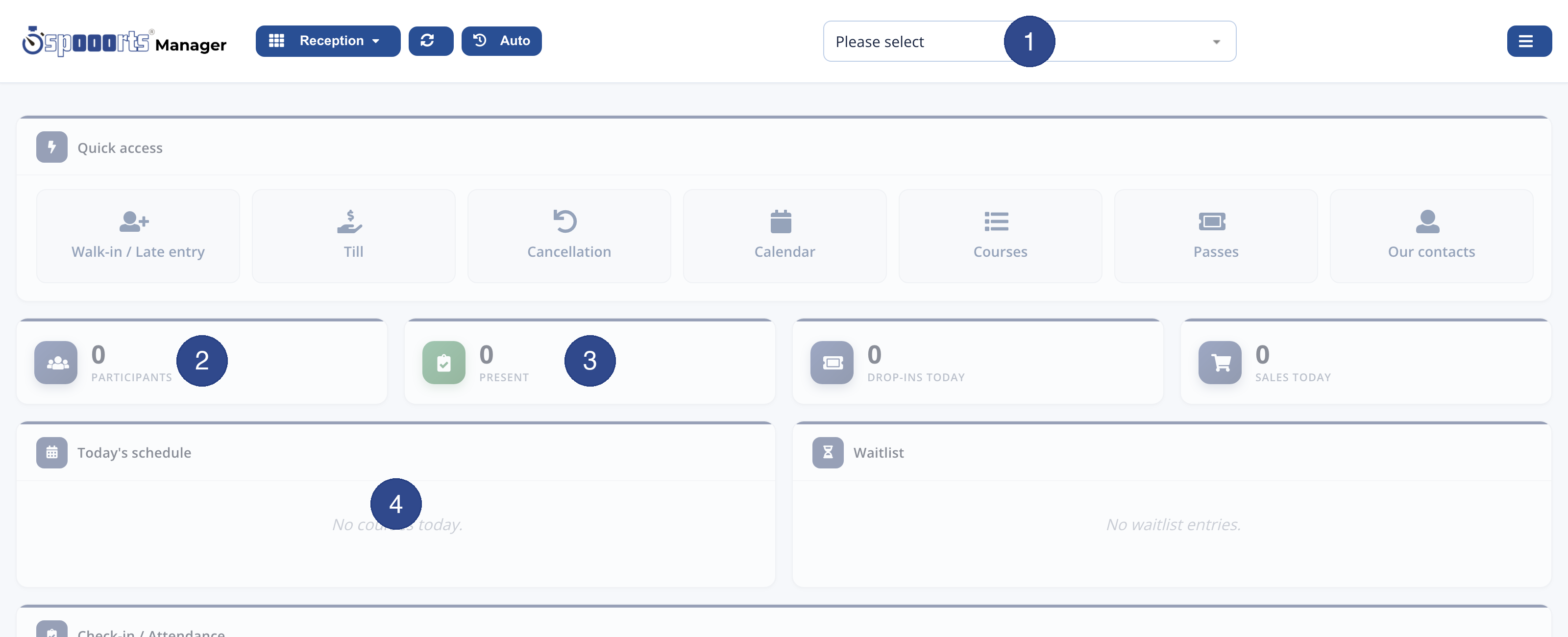
- 1 Pick a course
- At the top you pick the course session; the key figures and lists then refer to that session. Without a selection the board shows 0.
- 2 Participants
- The number of participants booked for the selected session.
- 3 Present
- How many of the participants have already checked in, i.e. are present.
- 4 Today's schedule
- Today's course sessions at a glance; from a row you jump straight into the session's check-in.
Step by step: check in
- Open Training → Reception.
- Pick the course session at the top.
- In the Check-in / Attendance panel, set the booked guests to present.
- For spontaneous guests, enter the name in the Walk-in / Late entry panel and confirm it.
Tipp Without a selected course the figures stay at 0; the lists fill up once a session is picked and booked.